Images and photos
Convert still images, adjust a photo, crop, annotate or prepare a screenshot. Explore JPEG, PNG, WebP, HEIC and other supported outputs.
Convert a format, make a focused edit and save a separate copy. Citrus brings everyday file tools together on your Windows PC.
Choose the kind of file you are working with. Each guide below explains the available tools, where the preview has limits and how to keep your next step simple.
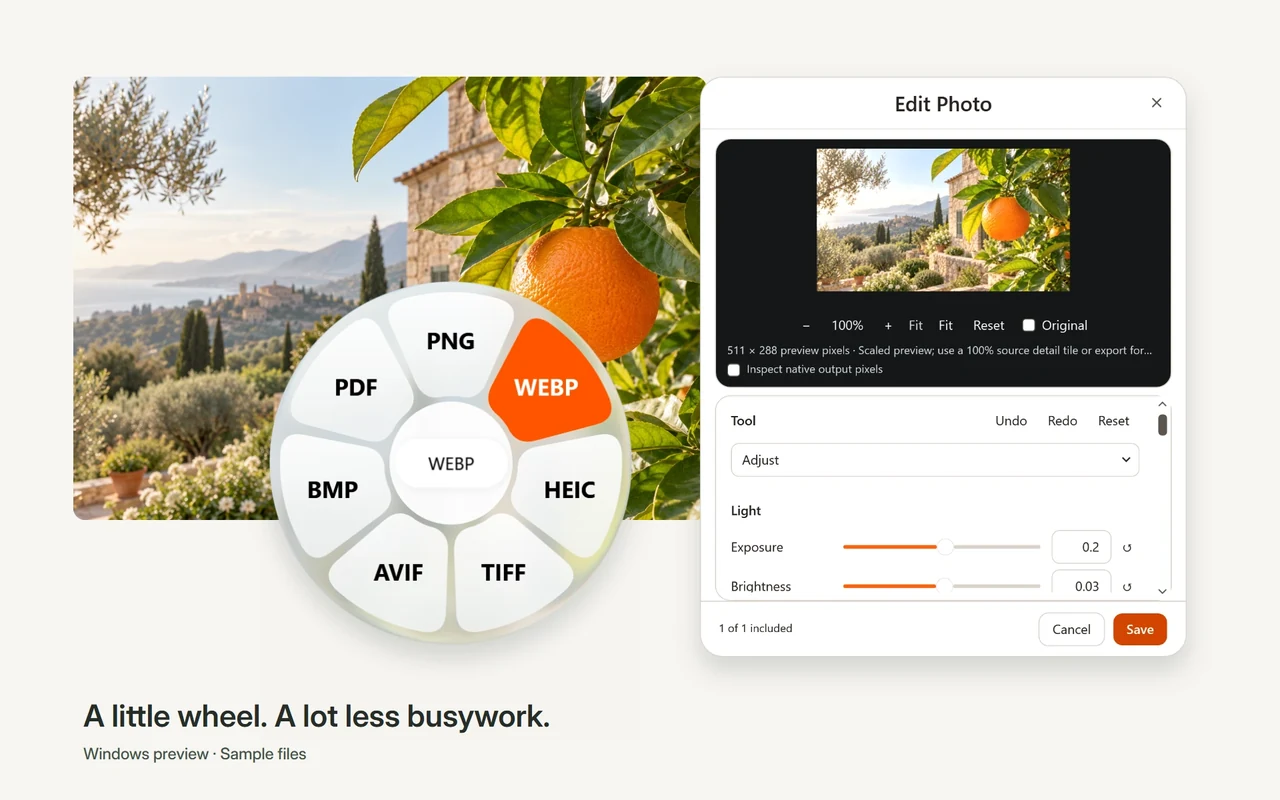
Convert still images, adjust a photo, crop, annotate or prepare a screenshot. Explore JPEG, PNG, WebP, HEIC and other supported outputs.
Change format, trim a range or make a focused edit with playable previews. Codec support follows the actual file and the local engines.
Convert for listening or sharing. Use waveforms to trim, bleep a range, adjust channels or normalize a separate output.
Organize PDF pages, export or split them, convert Office and EPUB files, and reconstruct editable content with OCR where needed.
Conversion and editing run on your computer, without a file-upload step or a conversion account. The website and GitHub installer download are online services; they do not process the files you open in Citrus.
Start in Open workspace, add files stored locally and choose Convert or Tools. The available choices follow the complete selection. Read the per-file result and check the exported file before relying on it.
Conversions and edits create collision-safe copies. Moving originals is a different, explicit file action. Keep backups of important material while exploring the preview.
Read the workspace quick startPrepare a local photo for a destination that expects JPEG, then inspect the new copy.
Use the playable preview and range handles to keep the part you need.
The download page keeps the preview version, exact installer size, checksum and known limitations together.
Citrus 0.3.0-preview.2 is an unsigned public preview for Windows x64. Windows 11 is recommended. Review the installer and requirements before installing.