Updated · For Citrus 0.3.0-preview.2
Start with a local clip.
Install the Citrus Windows preview and choose a nonessential test clip. Download any online-only cloud file before adding it. Your selected file must be readable by the preview’s local media engines; an MP4 or MOV extension alone does not establish codec compatibility.
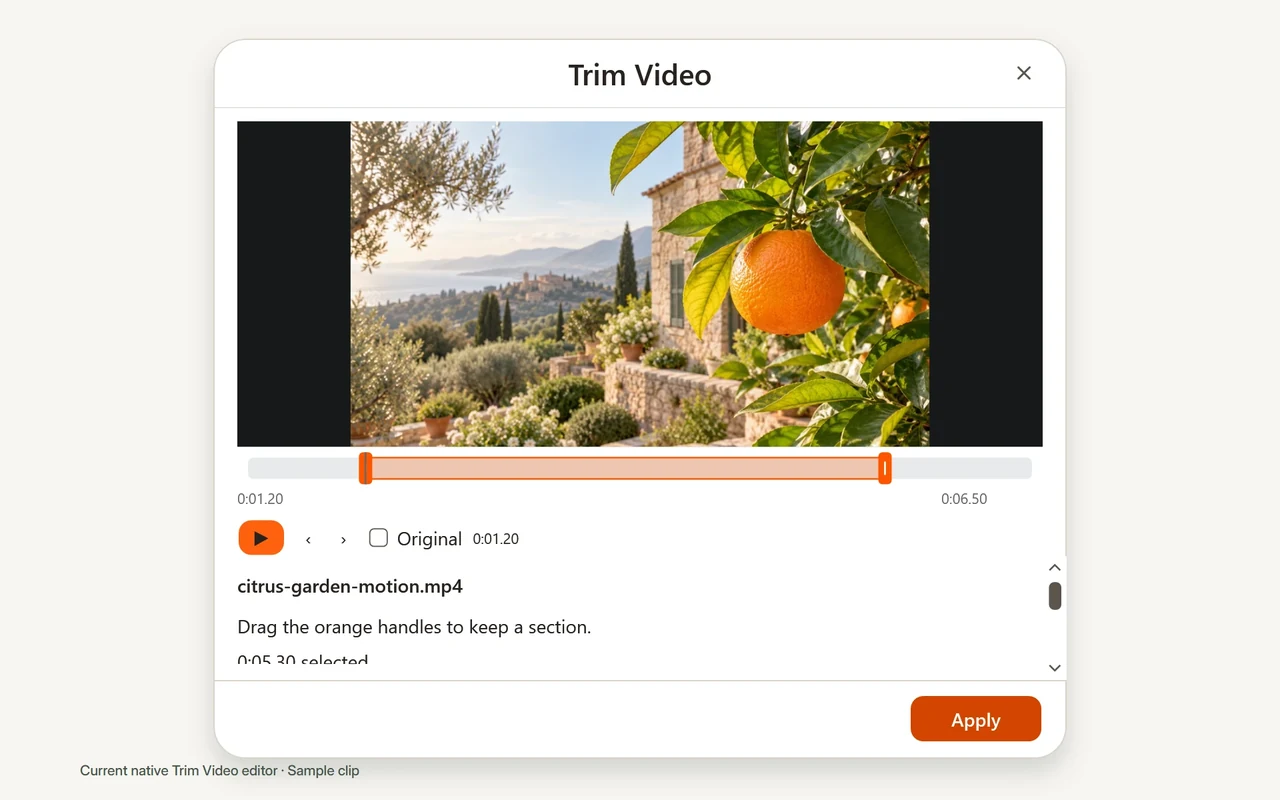
Trim Video opens a real playable picture with a timeline, playhead and direct range handles. Source verification and preview preparation can take time, especially for larger files.
Choose what to keep.
- Open the workspace. Launch Citrus and choose Open workspace, then add one local video using Add files or a drop into the workspace.
- Open Trim Video. Choose Tools, select Trim and choose Set options… to open Trim Video when available for the source.
- Play the source. Allow the picture to prepare, then use playback and the playhead to locate the part you need. Previous and next frame controls follow the source timestamps.
- Adjust the orange range handles. Move the beginning and end of the selection to the portion you want to keep. Review both boundaries in the preview before submitting the edit.
- Save the selected range. Choose Apply, then read the resulting job and its output location. Conversion and editing create a separate copy with a collision-safe name.
- Check the exported clip. Open the separate output file and inspect its first and last moments, duration, picture and sound. Keep the original until the result works for your destination.
Closing an unsubmitted editor does not create an output. For a queued or running job, use its cancel control and read the resulting state.
Make one change at a time.
Trimming selects a time range; cropping changes the picture boundary. Citrus provides a separate Crop video tool that keeps the full source visible while you adjust its crop. Choose the operation that matches the change you need.
Do not assume a trim preserves every encoding or media property. Review the saved file in the player or destination you plan to use. The preview is not a color-critical HDR mastering tool.
If the preview or export needs attention.
If Trim is missing from Tools, try one locally stored video and read any repair information. The actual streams and local codec support determine the available operations.
A surround or unsupported audio output configuration can use silent preview while the saved audio stays unchanged. Check the completed clip’s sound rather than using preview silence as the only result. For an export error, note the exact message and try a small, nonprivate example.
Find troubleshooting stepsKeep your next clip close.
The unsigned preview’s requirements, download and known limitations are collected in one place.
Citrus 0.3.0-preview.2 is an unsigned public preview for Windows x64. Windows 11 is recommended. Review the installer and requirements before installing.