Keep the moment.
Choose the next format.
Convert video or make a focused edit on your Windows PC. A playable preview keeps your work connected to the clip.
From a clip to a useful copy.
Citrus offers local video conversion and separate tools for changes such as trimming a range, cropping the picture or removing audio. You do not upload a source video to this website to use them.
Video destinations include MP4, MOV, MKV, WebM, AVI, WMV and animated GIF, plus audio extraction. Containers and codecs are different: a file extension alone does not establish what is inside, what the bundled engines can decode or which outputs are available.
Use Convert for a format destination and Tools for a focused edit. Review the offered operation and the resulting file; the preview does not promise every codec, device or source file will be compatible.
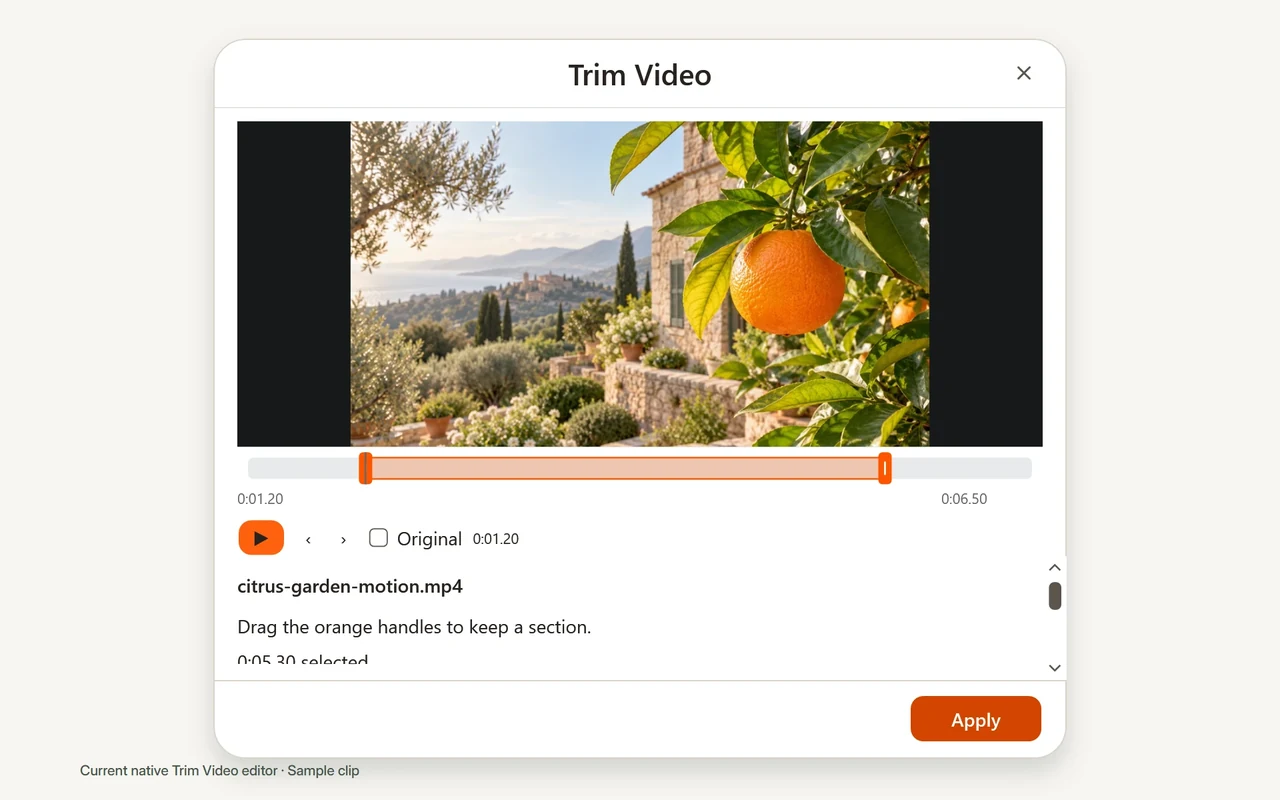
Keep the task focused.
- Choose a range
- Trim Video uses direct handles and a playhead. Play the source and adjust what you want to keep, with frame navigation tied to the source timestamps.
- Change the picture
- Crop keeps the full source visible while the boundary changes. Resize, capture a snapshot or apply manual redaction through the corresponding video tool.
- Prepare the output
- Separate tools cover compression, mute, speed, split and metadata. Review each tool’s settings and preview before applying the operation.
A local Windows workflow.
- Choose Open workspace in Citrus and add a locally stored video.
- Use Convert to select an available format or Tools to open an editor.
- Allow source verification and preview preparation to finish. Review the settings and playable result.
- Apply the operation, read the completed job and open its separate output file.
Preparation takes time, especially for larger files. A failed job does not mean its file extension is universally unsupported; read the specific message and test a nonprivate example.
Check the clip you export.
Crop and resize use even dimensions from 2 to 8190 pixels per axis and an SDR MP4 workflow. The video preview is not a color-critical HDR mastering tool. An unsupported surround or audio output configuration can use silent preview while the saved audio stays unchanged.
There is no general speed, quality or exact-size guarantee. Keep your original, check picture and sound in the output, and read the format-specific notes.
Read video and codec limitsKeep your next clip moving.
See the unsigned preview’s download details before trying the tools.
Citrus 0.3.0-preview.2 is an unsigned public preview for Windows x64. Windows 11 is recommended. Review the installer and requirements before installing.